Workflows have been migrated to Flows
From Version 11.1, Payments2Us now uses Salesforce Flow for automation instead of Workflow Rules, in line with Salesforce’s policies. If you are configuring or reviewing automation. We recommend using the Flows where applicable and for all new implementations.
- Equivalent Flows are available with the same names as the workflows (prefixed with “Payments2Us”).
- the Time-Dependent Actions are already included in the new Flows. You do not need to manually configure these actions.
- For migration steps and best practices, see: How to migrate Workflow to Flow.
Please note, this workflow is ONLY required if you wish to use the Variable Recurring Payments process and want to have the recurring payments processed automatically after they transactions are generated.
This workflow is generally superseded by using the Regular Recurring Payment option (as defined on the Payment Form related to the Merchant Facility Tab). This is the default option for all new installations of Payments2Us.
Salesforce already comes with workflow templates that cannot be altered. These instructions show how to create a copy of the template which is then updated to suit Payments2Us functionality.
This workflow reminds administrators to restart the Recurring Payment Processor, such someone stop the Recurring Payment Processor, but for some reason forgets to restart it within 1 day.
Quick Steps:
- Clone Workflow rule "Payments - Recurring Process [ADD TIME BASED WORKFLOW]" and rename to "Payments - Recurring Process"
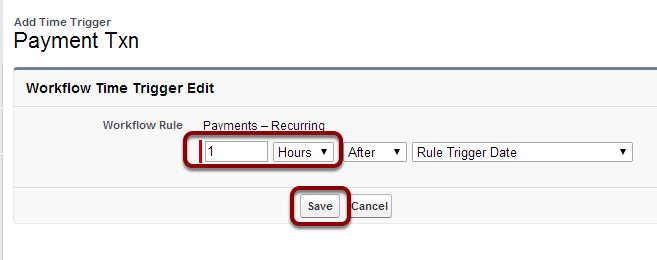
- Add a Time-Dependant Action. Set it to fire 1 hour after Rule Trigger date.
- Add Action - Use existing workflow - "Field Update: set Status Payment Start"
1. Open Setup

1.1. Search ‘Workflow Rules’
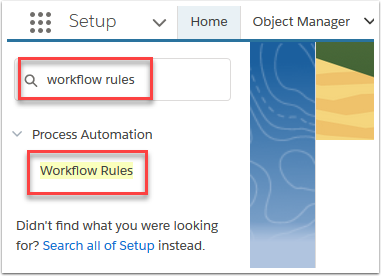
2. Read about Workflows and select ‘Continue’

This page can be turned off.
3. Scroll down to find 'Payments - Recurring Process [ADD TIME BASED WORKFLOW]' and select

Open the circled rule
4. Select ‘Clone’

4.1. Re-name the workflow rule ‘Payments - Recurring’


5.1. Set Time Trigger to '1 Hours After Rule Trigger Date' and Save


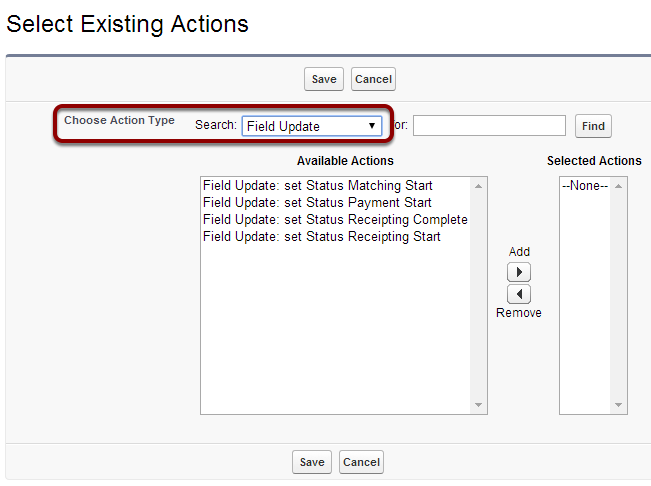
6.3. Add 'Field Update: set Status Payment Start' and Save


8. Select 'Activate' to begin the workflow process
