Workflows have been migrated to Flows
From Version 11.1, Payments2Us now uses Salesforce Flow for automation instead of Workflow Rules, in line with Salesforce’s policies. If you are configuring or reviewing automation. We recommend using the Flows where applicable and for all new implementations.
- Equivalent Flows are available with the same names as the workflows (prefixed with “Payments2Us”).
- For migration steps and best practices, see: How to migrate Workflow to Flow.
Payments2Us comes with a basic approval process for refunds. By default, refund approvals process is not enabled and this procedure walks you through how you can do this.
If you wish to have multi-level and more advanced approvals, you can setup Approval Workflows to do this. The final approval step simply needs to do a field update that checks the "Approved" checkbox on the Payment Txn. For setting up Approval workflows, please consult the Salesforce online help, or alternatively just use the more simpler version enabled in this procedure.
For organisations wanting to use Refund Approval Processes, we recommend you review the internal security setup procedure. You need to ensure that only approvals have update access to the Approval field on the Payment Txn Object.
Quick Steps:
- Locate workflow: Refund Approval
- Update the recipient of the workflow email
- Enable this workflow
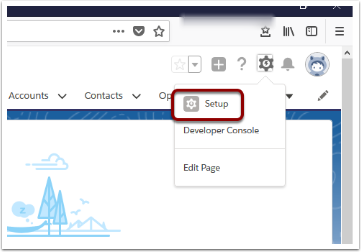
1. Open Setup
2. Search and select ‘Workflow Rules’

3. Use the alphabetical look-up to find 'Refund Approval', and Activate

4. Click into the Refund Workflow Approval and into the Email Alert
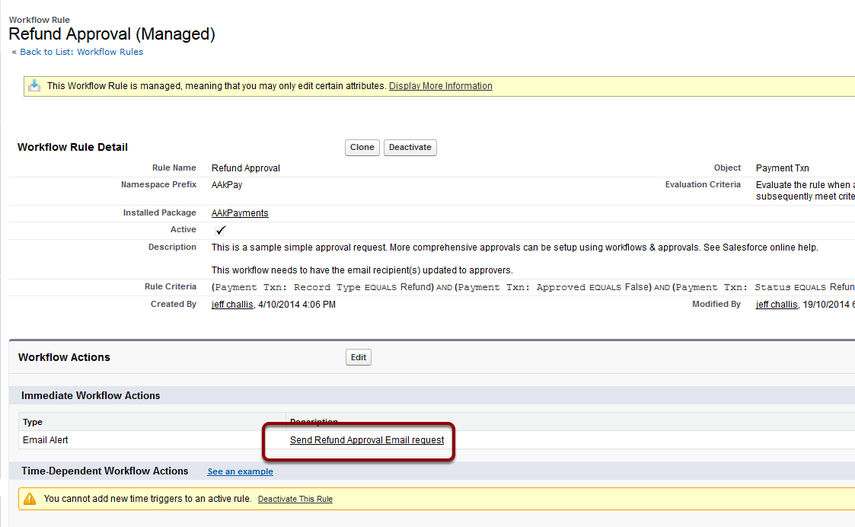
5. Edit the Email Alert - Send Refund Approval Email request

6. Update the recipient(s) and Save
