Sorry, we didn't find any relevant articles for you.

Send us your queries using the form below and we will get back to you with a solution.

PayPal

Topics on PayPal

What needs to be considered when using PayPal for regular payments?

The following need to be considered when using PayPal with regular payments You n ...

The following need to be considered when using PayPal with regular payments

  1. You need to have a License key and to have that entered against the Merchant Facility. Contact support@payments2us.com for a license key and pricing.
  2. For subscription/memberships and for regular payments/donations, the price is set on sign-up. If you wish to change the price, then you payer must re sign up.
  3. After adding the license key and enabling PayPal as an option of the Merchant Facility - Method of Payment field, you then need to edit/save each Payment Option related to the Payment Form for memberships/Subscriptions. Doing this creates a new Billing Plan in PayPal.
  4. Recurring Payments status perform special updates to PayPal.
    - Inactive status changes the status in PayPal subscription to Canceled. Note, once canceled, the subscription canNOT be re-activated. To reactivate, the payer has to resign up.
    - Suspended status changes the status in PayPal subscription to Suspended. (NOTE, only suspended status's can reactivate a subscription.
    - Suspended Status changed to Active will reactivate the subscription in PayPal.
  5. Should PayPal not be able to process a payment more than the number of retry times setup, the status on the Recurring Payment will be changed to Suspended - Max retries exceeded
  6. Should you suspend a regular payment from within your instance of PayPal, then the Recurring Payment in Salesforce will be marked as Suspended
  7. Should you cancel a regular payment from within your instance of PayPal, then the Recurring Payment in Salesforce will be marked as Inactive
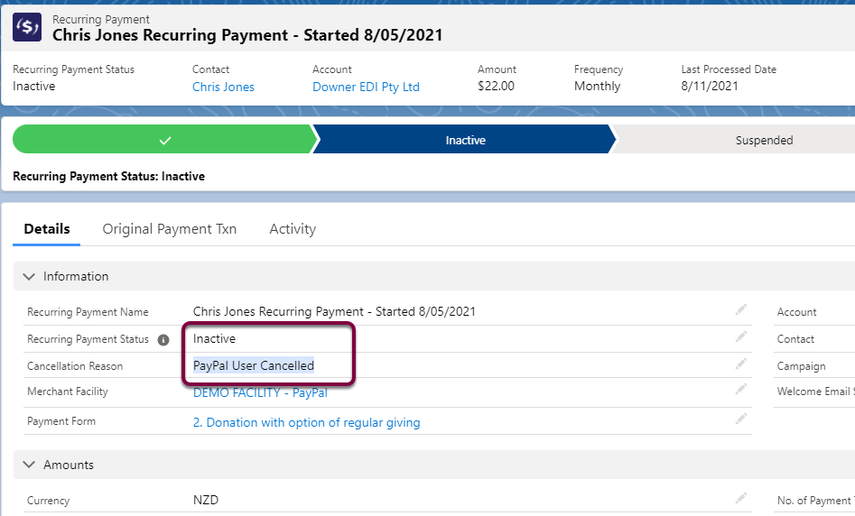
  8. Should a PayPal subscriber cancel, then related Recurring Payment Status is changed to Inactive and the Cancellation Reason is set to "PayPal User Cancelled"
  9. The following operations are not supported from your PayPal Console (I.e. when logged into PayPal)
    - Editing of a recurring plan
    - Refunding of a payment (NOTE, refunds are supported from within Salesforce)
  10. It is important to following the PayPal install instructions. In particular the webhook setup step. Without this, updates from PayPal will not be recorded in Salesforce
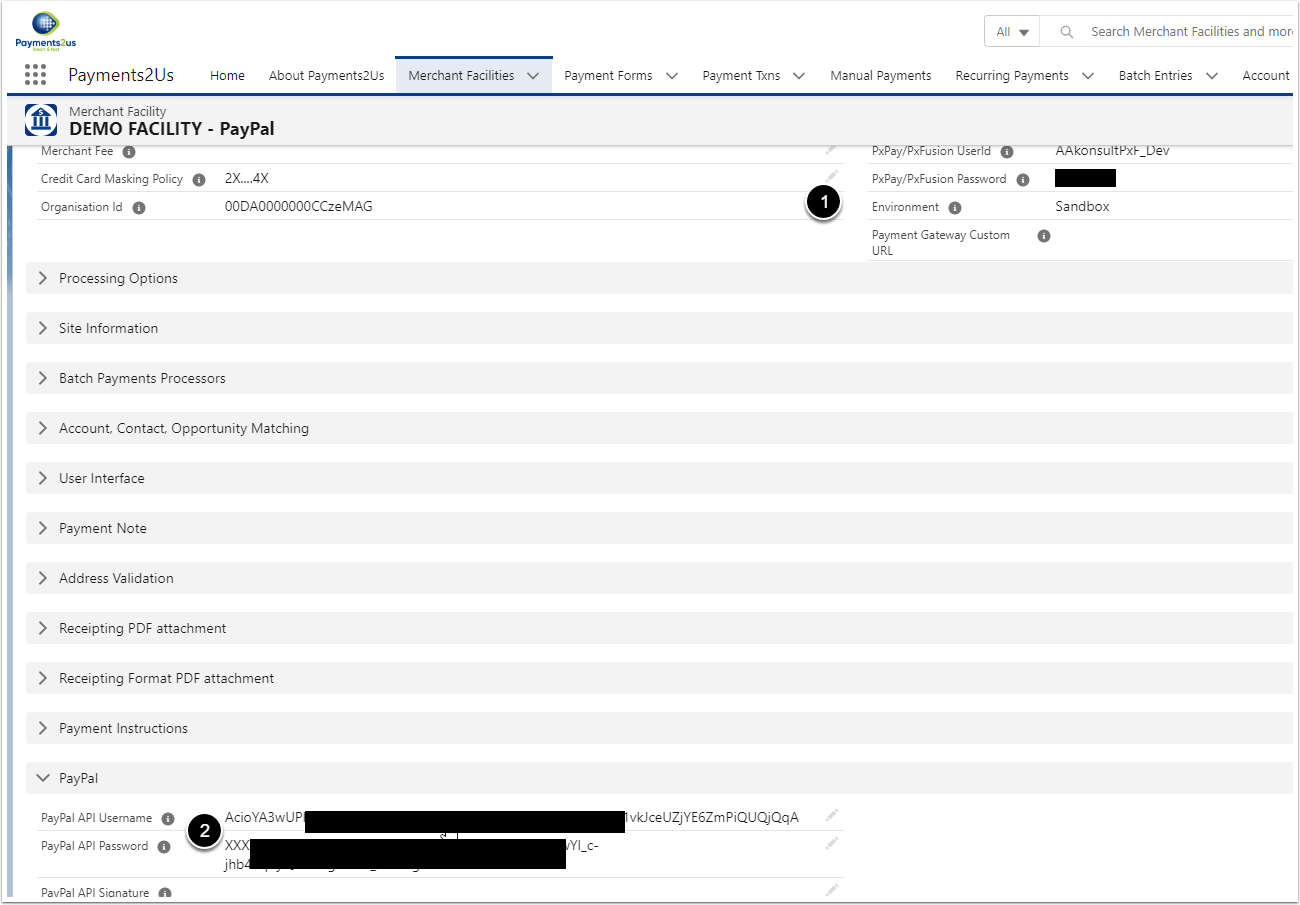
  11. For memberships. Payments Options need to be changed after the PayPal Credentials are entered on the Merchant Facility
  12. For memberships. Updates to the price or frequency on the Payment Option will NOT update the related Recurring Payer subscriber agreements. The subsribers will need to sign up and approve the new plan.
  13. PayPal with Recurring Payments require Payments2Us version 6.9 or higher.
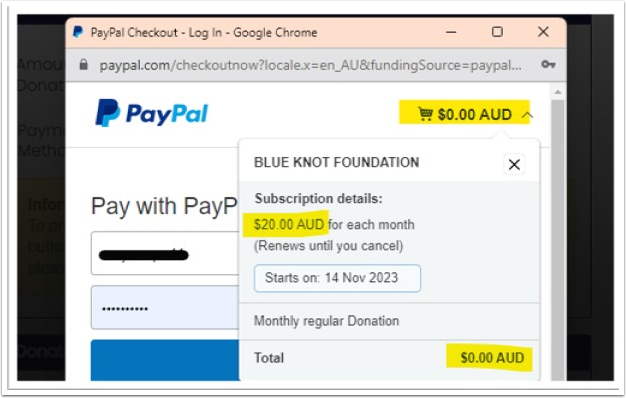
Why does a Recurring PayPal donation = $0

When the donor/payer signs up for recurring PayPal transactions, the payment is N ...

When the donor/payer signs up for recurring PayPal transactions, the payment is NOT taken right out right away.

The PayPal checkout will show the regular amount (e.g. Monthly), but the total on the checkout page is $0.

PayPal will process the first Payment later that day or early the next day.

This is how the PayPal recurring works.

A Paypal Recurring Payment was created, but the first transaction did not make a charge and no further Payment Txns have been created. Why is it doing that?

Paypal Recurring Payments behave differently to other regular payments. Unlike cr ...

Paypal Recurring Payments behave differently to other regular payments. Unlike credit card payments which are create and charged from within Payments2Us and Salesforce, Paypal payments are generated within Paypal, and then the information is sent via the webhook and ID details to create a Payment Txn as a record for the payment.

The initial Payment Txn should be they type "Paypal Setup". This Payment Txn authorises the Paypal account to be charged.

Make sure that all setup requirements within Paypal are complete. See here for information about Paypal setup.

What to check when we get PayPal Webhook errors- "Payments2Us - Error Log Report - could not find recurring payment:I-XXXXXXXXXXXX" ?

Check the Recurring Payment Record - Record Type is "PayPal" Check the Status Che ...

  1. Check the Recurring Payment Record - Record Type is "PayPal"
  2. Check the Status
  3. Check if the Status is added to the Sharing rule on Recurring Payment Object. If not add the Status to the Sharing Rule.- Add Recurring Payments Sharing Settings
  4. Check if the Billing Token in the error message actually exists on Salesforce.

Why is "PayPal – Recurring" transaction date out by one day from when they signed up?

For PayPal, we create a Billing Agreement in PayPal. The First Payment and subseq ...

For PayPal, we create a Billing Agreement in PayPal. The First Payment and subsequent date is a day after they sign up day. This is expected behavior and is due to PayPal integration API.

You can see their documentation: https://developer.paypal.com/docs/api/payments.billing-agreements/v1/#definition-create_agreement_request

In particular:

start_date string required

The date and time when this agreement begins, in Internet date and time format. The start date must be no less than 24 hours after the current date as the agreement can take up to 24 hours to activate.

How are the Recurring Payment Status's used with PayPal

Inactive status changes the status in PayPal subscription to Canceled. Note, once ...

  • Inactive status changes the status in PayPal subscription to Canceled. Note, once canceled, the subscription canNOT be re-activated. To reactivate, the payer has to resign up.
  • Suspended status changes the status in PayPal subscription to Suspended. (NOTE, only suspended status's can reactivate a subscription.
  • Suspended Status changed to Active will reactivate the subscription in PayPal.

Please note these status's are very specific from and to as listed above. Changing to another interim status will likely cause the interactions to PayPal to not work.

How can a PayPal user cancel their Regular Payment

A PayPal Recurring Payment can be cancelled by two methods A Salesforce user can ...

A PayPal Recurring Payment can be cancelled by two methods

  1. A Salesforce user can update the Recurring Payment Status to "Inactive"
  2. A PayPal user can cancel the recurring payment from their PayPal dashboard. See notes in following steps

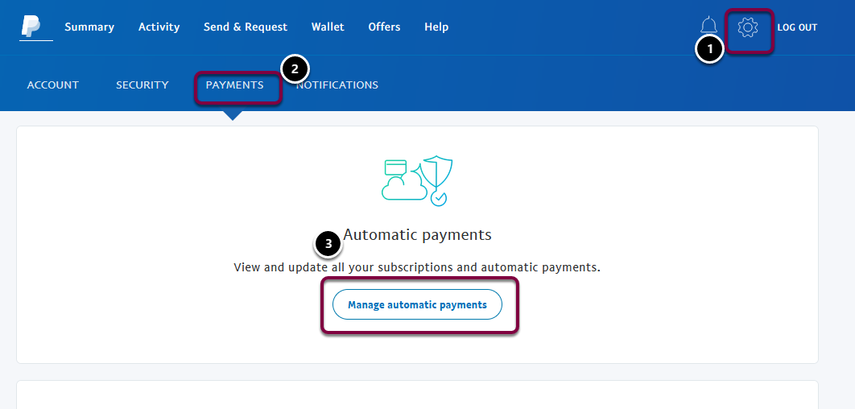
1. PayPal user cancelling from with PayPal dashboard

After logging into PayPal:

  1. Click on Cog (top right)
  2. Click on Payments Tab
  3. Click "Manage Automatic Subscriptions" button
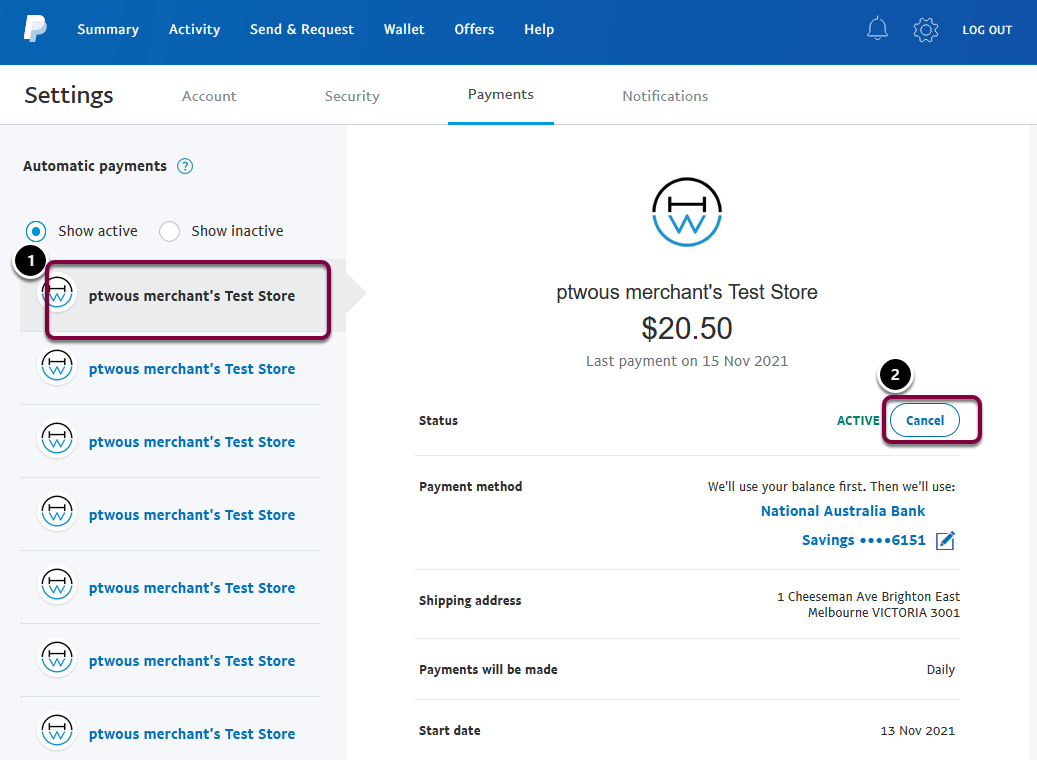
  4. Locate your subscription
  5. Press Cancel Button

This will then update their Recurring Payment record in Salesforce to have a Status as "Inactive" and a Cancellation Reason of "PayPal User Cancelled"

How to create PayPal transactions manually?

When the donation/payment is received at PayPal and the Payment Txns are not crea ...

When the donation/payment is received at PayPal and the Payment Txns are not created in Salesforce. Please check the PayPal setup to make sure you settings are correct.

https://help.payments2us.com/m/installation/l/905951-how-to-setup-paypal-modern

To create Payment Txns-

If the PayPal transaction is One-Off

  1. You can use Manual Payment to create the transaction. See link below
    https://help.payments2us.com/m/userguide/l/215402-how-to-do-manual-payments
  2. OR you can use Import File feature with "Method of Payment -PayPal" to create Payment Txn

https://help.payments2us.com/m/userguide/l/248295-how-to-import-csv-files
https://help.payments2us.com/m/userguide/l/559156-import-files-faq

If PayPal transaction is Recurring

  1. Add a new recurring payment with Record Type -PayPal , Status- Active, linked to contact ,merchant facility, payment form, donation amount and the billing token.
  2. Then create a Payment Txn for that record manually (Manual Payment)
  3. Make sure sharing rules are correct.

https://help.payments2us.com/m/installation/l/1176028-how-to-setup-sites-sharing-settings#add-recurring-payments-sharing-settings

Why am I getting an Error Log with "Program/Area: payPalUtil.accessToken" and "Subject: HTTP Callout invalid_client"

This can be because of an incorrect setup or due to a temporary outage from PayPa ...

This can be because of an incorrect setup or due to a temporary outage from PayPal. Please check with PayPal support and try again in for example 30 minutes. If the issue persists, then proceed with the instructions below.

For setup, this means either of the below is incorrect:

  1. Environment (needs to be Sandbox or Production)
  2. PayPal Username / Password

Please review the setup procedure for PayPal. Pay Particular attention to the Environment (Production/Sandbox) inside PayPal setup


Why do I get an error with program/Area: Program/Area: paypalwebhook.doPost and Subject: could not find recurring payment:I-xxxxxxxxxx

PayPal pushes recurring payment/donation information into Salesforce. What this e ...

PayPal pushes recurring payment/donation information into Salesforce.

What this error is saying that the PayPal Webhook cannot locate the "Recurring Payment" record where the Billing Token (field on the Recurring Payment) is "I-xxxxxxxxxx" (you can see this reference in the subject).

You can do a search in Salesforce to see if you can locate the Recurring Payment by searching for "I-xxxxxxxxxx".

PayPal will keep on retrying to send a Webhook update to Salesforce until it gets a success response. So, you may very well get this same error message multiple times.

To resolve:

  1. First Check the Recurring Payment Sharing Rule has been setup correctly. If this is not setup correctly then PayPal Webhook might not have access to the Recurring Payment record and that is why it cannot locate it.
  2. If the body of the error message includes "BILLING.SUBSCRIPTION.CANCELLED" in the text, then this indicates the donation was canceled. This may have been a request by the payer/donor. This changes the status on Recurring Payment.
    What can happen is the Recurring Payment has a Recurring Payment Status of "Inactive" or "Cancelled". These status's are excluded from the sharing rules, so the webhook cannot locate.
    You can either ignore these messages and they'll go away after a few days OR adjust the Recurring Payment Sharing Rule to also include the Cancelled and Inactive status.

Why do I get an error with Program/Area: paypalwebhook.doPost and Subject: Payment Form locate

This means the PayPal Webhooks is not able to locate the Payment Form inside Sale ...

This means the PayPal Webhooks is not able to locate the Payment Form inside Salesforce. Please check:

  • Sharing settings. In particular those for the Merchant Facility
  • Check the Base Site URL On your merchant Facility. This is particularly applicable if have recently had or enabled Enhanced Domains.
  • Redo the setup for the PayPal Webhook. Make sure the Payment Form you copy the URL from is linked to a Merchant Facility that has the "Active" checkbox selected.

A Paypal Recurring Payment was created, but the first transaction did not make a charge and no further Payment Txns have been created. Why is it doing that?

Why is my Paypal Webhook Integration not working?

If your Paypal webhook / Sycn / Integration is not working correctly or acting we ...

If your Paypal webhook / Sycn / Integration is not working correctly or acting weird, then check the following:

1) Check the Paypal is added as a License option on the merchant facillity and the license is not expired 
 

2) Check paypal Setup with correct URL (from the payment form) and all required Event Types specified in the setup article.

Please see note in green information box (above link). Therefore, check that one forms is being used for the paypal webhook setup and others do not have the webhook secret key as well.
 

3) This could be due to the base site URL on the Merchant facility not being correct. This FAQ article explains the issue briefly and provides solution which is to update the base site URL on the Merchant facility. 

Check if the base site URL is updated correctly following this article. If the base site URL had ‘force.com’ then please do see 3.1 and 3.2.

3.1) Then please note that this updation of base site URL does not not update any webhooks setup with the older URL. As a result, any older force.com site URLs that were still being used- even if indirectly or in cached/linked locations - have now become invalid. This would mean webhooks setup for example stripe, shopify, paypal and payments2us.

3.2) The paypal webhook needs to be reconfigured for paypal setup using the new '.salesforce-sites.com/' URL. Follow the setup article shared above to setup again. Make sure to use correct URL and setup for all correct Event Types

4) Apart from the above please check error logs to see if there is an error relevant to paypal. Also please see FAQ Paypal.

Why do I get the error with Program Area: paypalwebhook.doPost Subject: Payment Form webhook

Overview This article explains the cause and resolution for the paypalwebhook.doP ...

Overview

This article explains the cause and resolution for the paypalwebhook.doPost error that may appear in the Error Logs within Payments2Us.

The error commonly appears as:

Program Area: paypalwebhook.doPost
Subject: Payment Form webhook
Description: webhook secret key missing

This means Payments2Us received a webhook event from PayPal, but the Payment Form record linked to that webhook does not have a Webhook Secret Key value populated.


What the Error Means

When PayPal sends a webhook notification (for example, PAYMENT.SALE.COMPLETED), Payments2Us matches that webhook to the correct Payment Form using the Webhook Secret Key.

If the Webhook Secret Key field is blank or mismatched, Payments2Us cannot validate the webhook and logs an error such as:

 
Program Area: paypalwebhook.doPost Subject: Payment Form webhook Description: webhook secret key missing a0xXXXXXXXXXXX

This usually occurs when:

  • A new PayPal webhook was created but the setup was not completed, or
  • The existing Payment Form is linked to an incorrect or duplicate webhook in PayPal.


Common Scenario

A common reason for this error is that a new PayPal webhook setup was started but not fully completed.

For example:
A new webhook was created for a Payment Form, but the setup was stopped midway — before the Webhook Secret Key was populated in Salesforce.

Later, when PayPal sends webhook events to that incomplete webhook, Payments2Us cannot match or validate the event, and the error appears in the log.


Resolution Steps

  1. Identify the Payment Form
    • Check the error log to find the Payment Form ID (e.g. a0xXXXXXXXXXXX).
    • Open the corresponding Payment Form record in Salesforce.
  2. Check the Webhook Secret Key Field
    • If the field Webhook Secret Key is blank, the webhook setup is incomplete.
  3. Delete the Incorrect or Incomplete Webhook from PayPal
    • Log in to your PayPal Developer Dashboard.
    • Go to My Apps & Credentials → Webhooks.
    • Locate the webhook URL associated with this Payment Form.
    • Carefully delete the incomplete or duplicate webhook.
    • ⚠️ Be cautious to remove the correct webhook only — deleting an active one may affect live transactions.
  4. Recreate the Webhook (if needed)
    • Follow the guide How to Setup PayPal Modern to create a new webhook correctly.
    • After successful setup, the Webhook Secret Key field should be automatically populated in the Payment Form record.
  5. Verify
    • After setup is complete, monitor the Error Logs for at least one business day to confirm the issue is resolved.


Prevention Tips

  • Always complete the entire PayPal webhook setup process before testing transactions.
  • Ensure that only one active PayPal webhook exists per live environment.
  • Do not manually modify the Webhook Secret Key field in Salesforce — it is automatically generated.
  • Keep a record of active webhook URLs and their corresponding Payment Form IDs for troubleshooting purposes.


Summary

The error paypalwebhook.doPost – webhook secret key missing occurs when PayPal sends a webhook that cannot be matched to a valid Payment Form due to a missing or incomplete Webhook Secret Key.

To resolve:
Delete any incomplete or duplicate webhooks in PayPal, and then recreate the correct webhook following the PayPal Modern Setup Guide.

Once correctly configured, webhook events will process successfully and the error will no longer appear.