Please note, the below steps are only applicable if you are using iframe to load your donation form on your website
1. Add your Domain in Stripe Apple Pay
Navigate to the following URL depending on your environment (prod or test)
For production:
For testing:
In payment methods find Apply Pay and do the following steps
- Expand the Apple Pay section by clicking on ‘>’
- Press Configure Button
- NOTE: If testing, enable Test Mode before Configuring.
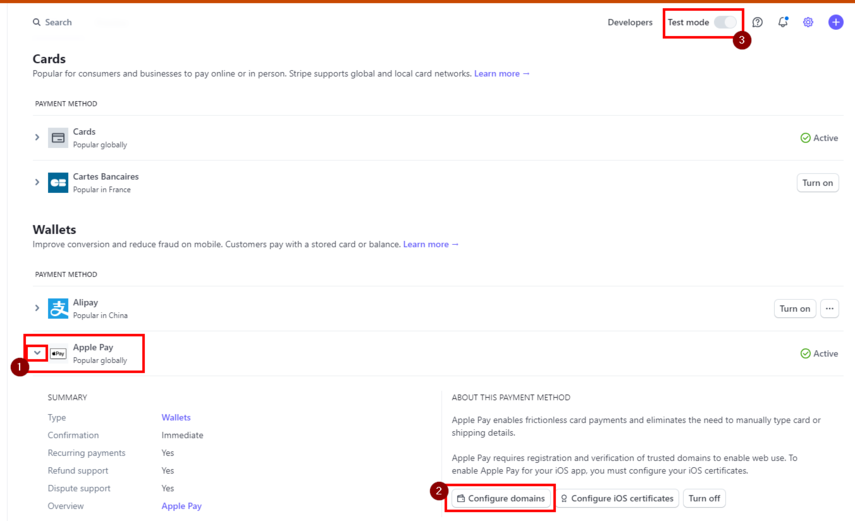
This will redirect you to the payment method domains tab. Here complete the following steps:
- Press Add new domain button
- Add the domain name of the website where your payment form will be framed (e.g your website )


2. Add the allow Attribute to the Iframe Tag
Add allow="payment *" attribute in the <iframe> tag. It is required to load the Apple Pay JavaScript API Library.
Example:
<iframe allow="payment *" src="https://your-domain.my.salesforce-sites.com/AAkPay__CheckoutM?payMSetting=a0ZQE000003Nyxp2AC&payMType=a0bQE000001etq3YAA&cachecontrol=1774512639593&camid=" height="2500" width="1080"></iframe>